Using the Windows Snipping Tool
The Windows Snipping Tool is very easy to use and creates images that you can embed in an e-mail without causing horizontal scrolling. You can locate the tool by searching for snipping. Once you have found the tool save it to Start or even better your toolbar - and you can then open it later with just one click.
When you open the Windows Snipping Tool select New.
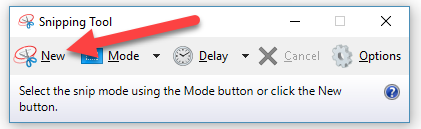
You can then use your mouse (hold down the left button) to highlight a rectangular area of the screen.
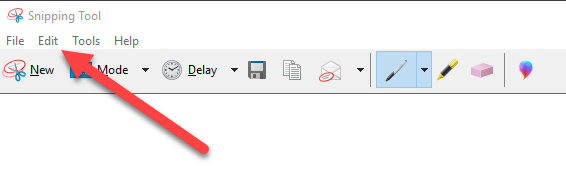
Then select Edit > Copy to copy your image to your clipboard. You can then paste the image into the body of an e-mail using the e-mail client's paste command - or just Crtl V.
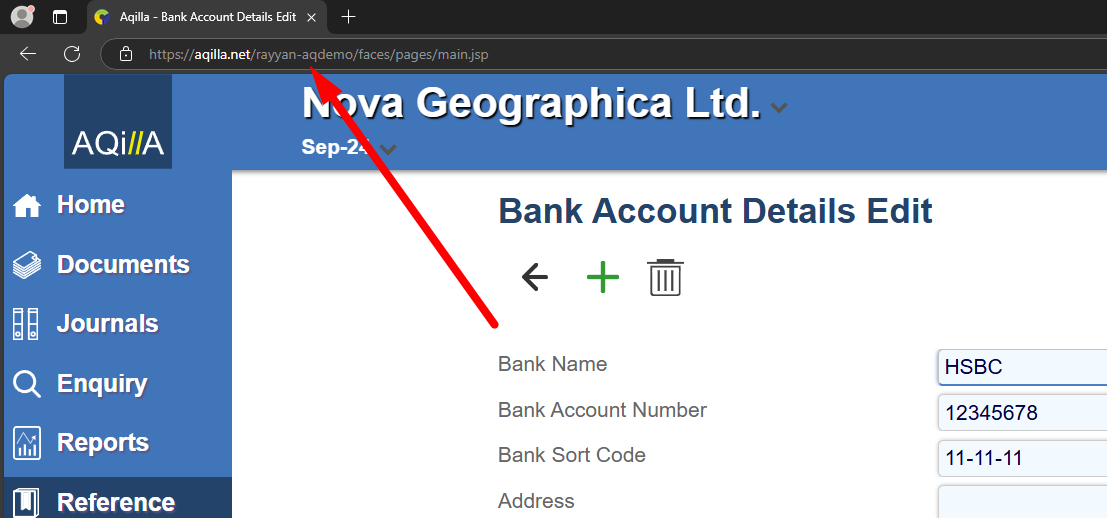
When you highlight an area of the screen it is enormously helpful to us if you include the url which indicates the instance you are using, thus: