
Sharperlight Reports
Make sure Include Sharperlight Reports are set to yes in Instance Settings.
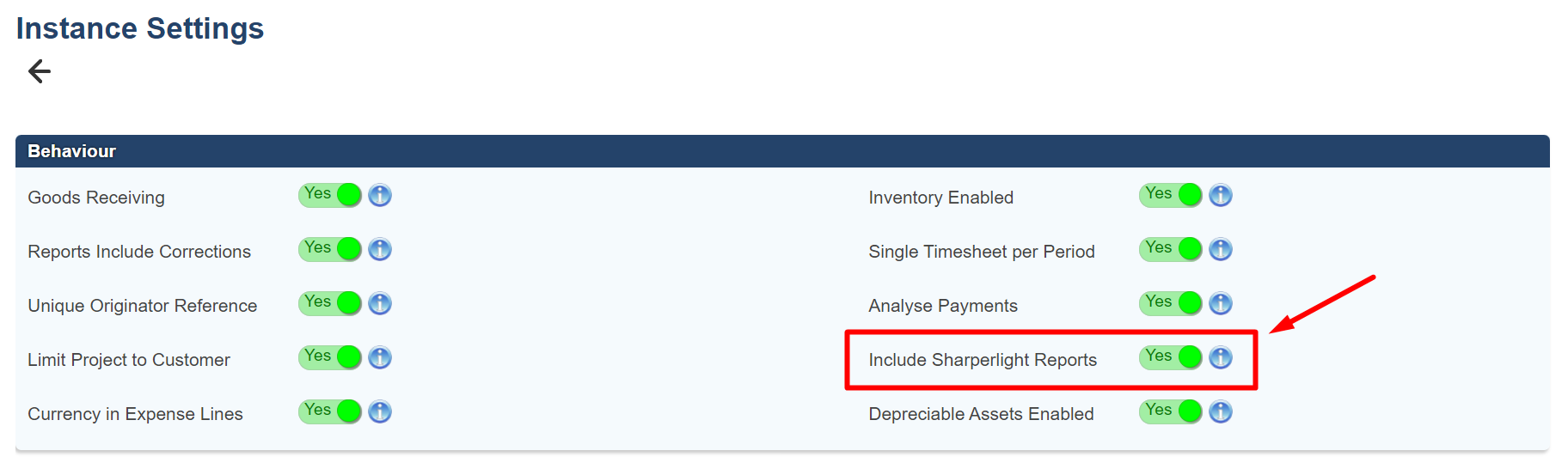
To see more information about these settings. See Instance Settings
Configuration: Sharperlight Reports
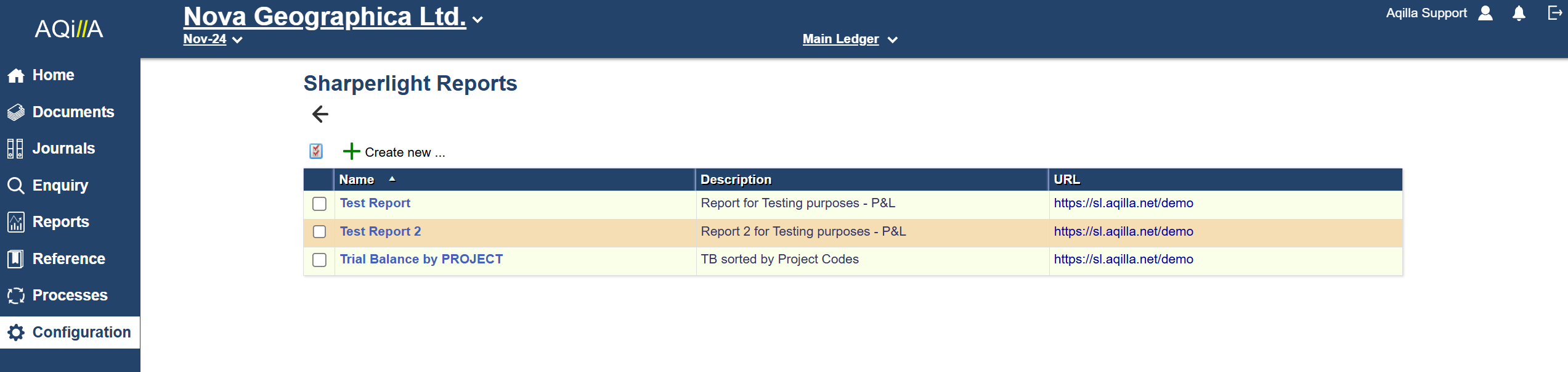
Once you have set Sharperlight Reports to yes, you can find a new line in your configurations.
Here you will be presented with this new window.

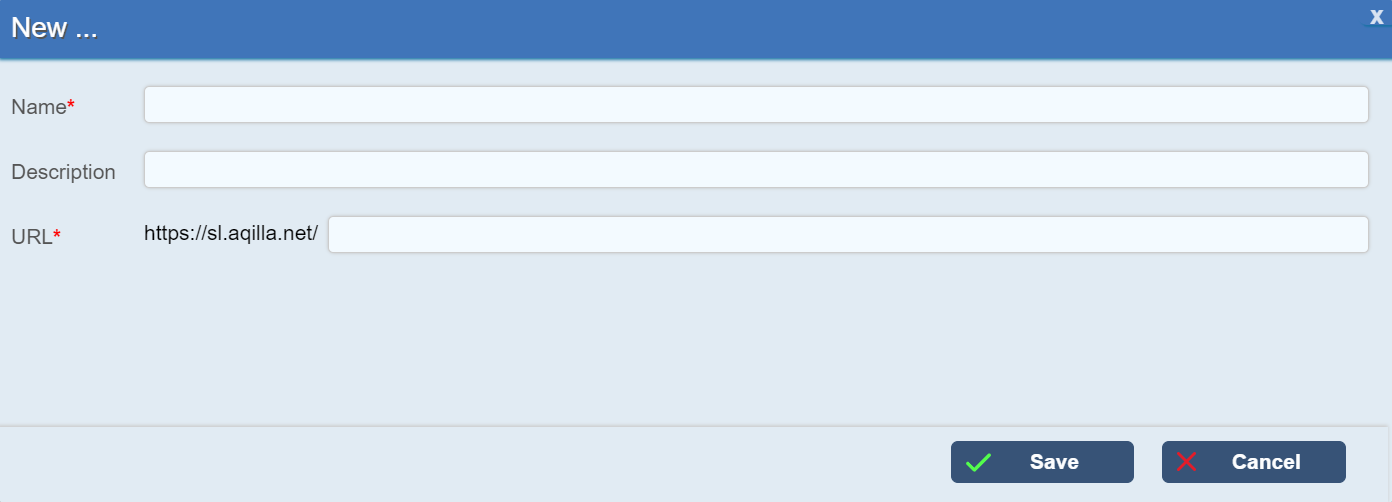
Click Create New
|
Name |
The name of the Sharperlight report. |
|
Description |
The description of the Sharperlight report. |
|
URL: |
The link to the Sharperlight report. Please see publisher for the full links |
Once the fields have been filled out. Click on the Save button.
A Sharperlight report can be deleted by selecting it, and pressing the Delete button, as seen below.

Once you are done with configuring your new Sharperlight Report, you will find it under Reports.
Reports: -> Test
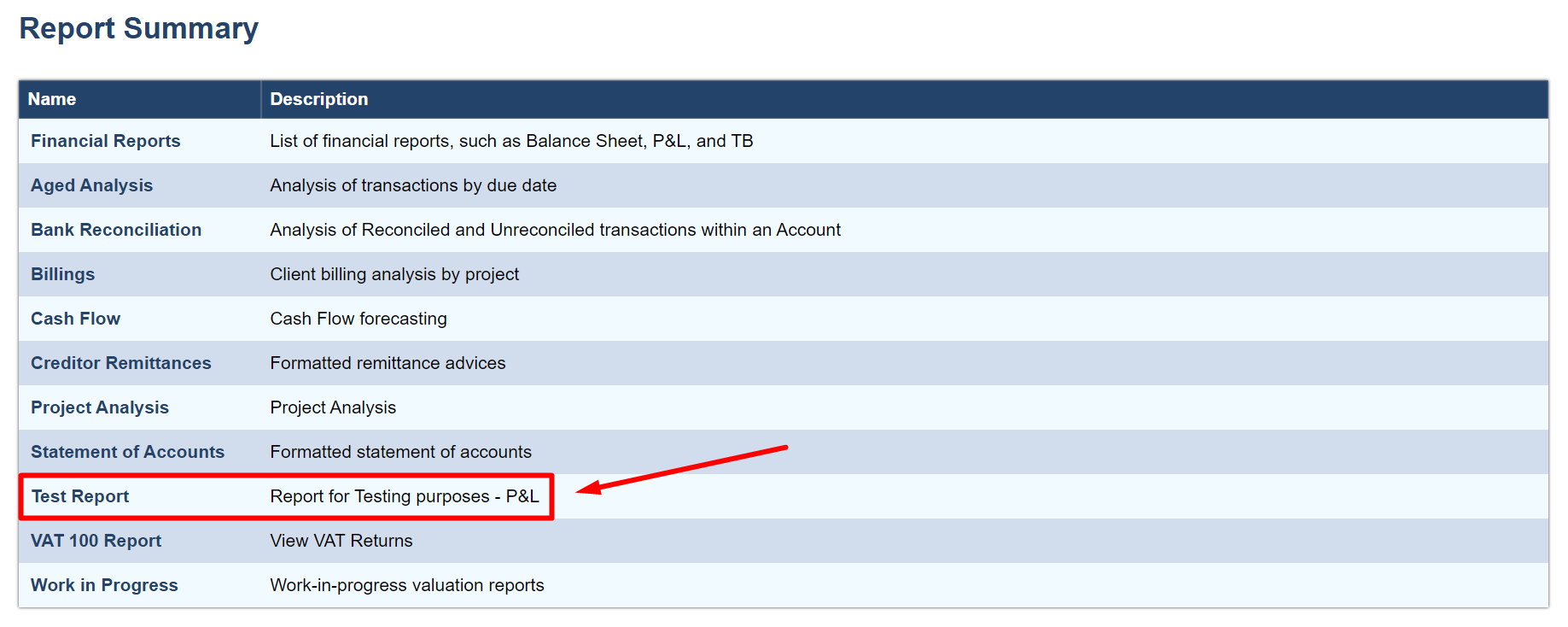
The name and description you have provided will be shown under the Reports tab.
Clicking on the name will go directly the URL.