
Overview
Automation rules automatically populate fields when invoices are imported via E2D. Rules apply in the order shown on the page, so start with specific conditions and then broaden them. When a purchase invoice arrives in the inbox, the system evaluates and applies these rules.
Automation rules control how Aqilla fills invoice fields. By setting conditions, the system populates fields automatically when those conditions are met.
This reduces manual effort input, improves consistency, and ensures invoices comply with predefined rules.
Screen Layout
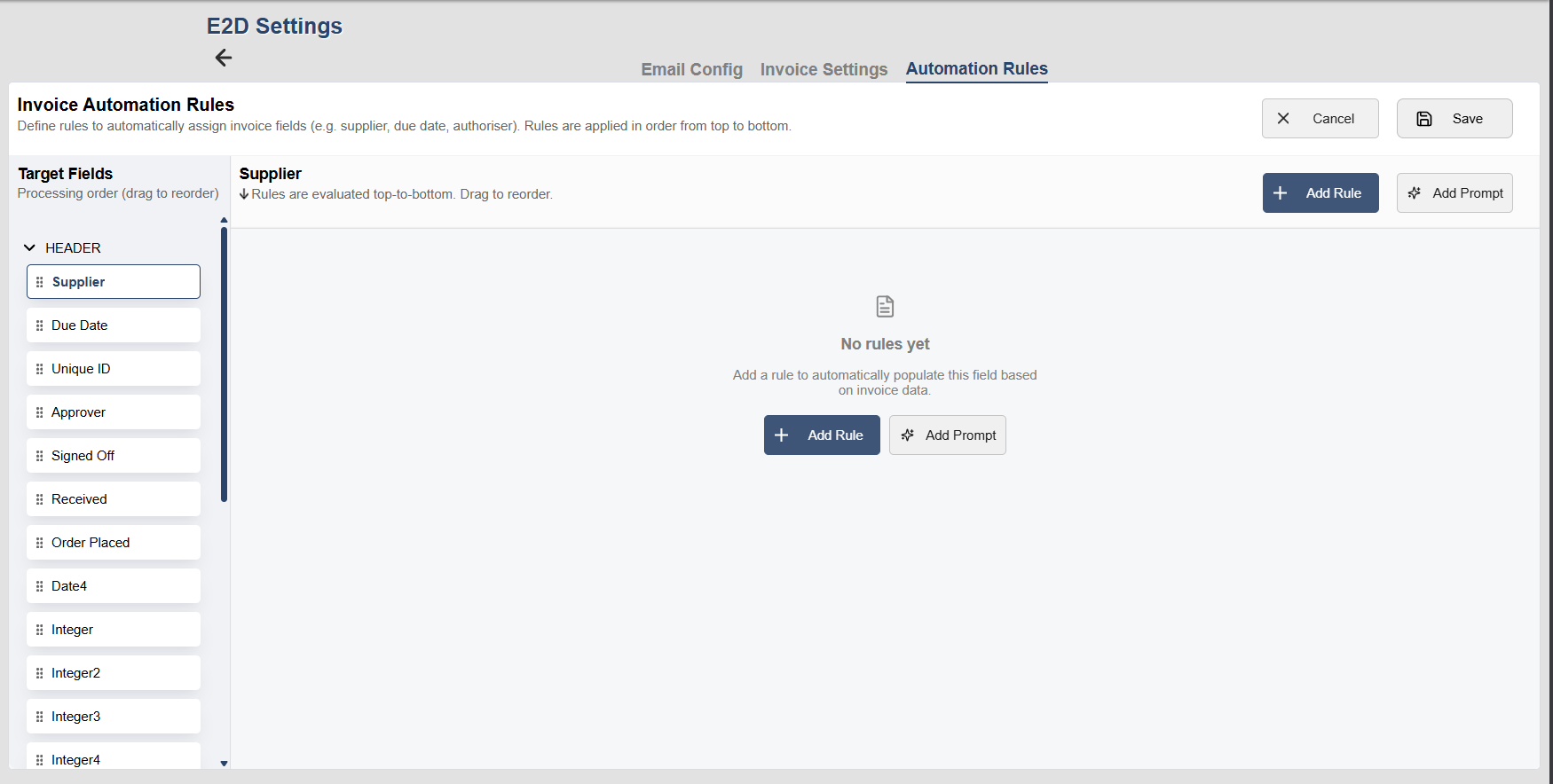
The Automation Rules screen has two main sections.
-
Target Fields (left-hand side) – the field updated when a rule triggers
-
Rules configuration (right-hand side) – defines conditions and outcomes
Navigation
-
Drag and drop to reorder
-
To set order rules for each field, select the target field and drag it using the four dots left of the field name.
-
You can reorder rules the same way.
-
Each section scrolls independently
Prompts always execute last
Available Attributes
Automation rules can be applied across a wide range of attributes, including:
-
Document header fields
-
Line-level fields
-
Custom attributes
-
Projects
This allows for flexible and detailed control over how invoices are populated.
`Automation rules provide a structured way to automate invoice processing at the draft stage. By defining clear conditions and outcomes, organisations can reduce manual effort, improve accuracy, and maintain consistent data entry across invoices.
Creating an Automation Rule
To create a rule:
-
Select the required field from the Target Fields list (for example, Supplier)
-
Click Add Rule
-
Enter a description (optional, but recommended for clarity)
-
Define the condition that will trigger the rule
-
Set the value that should be applied when the condition is met
Example
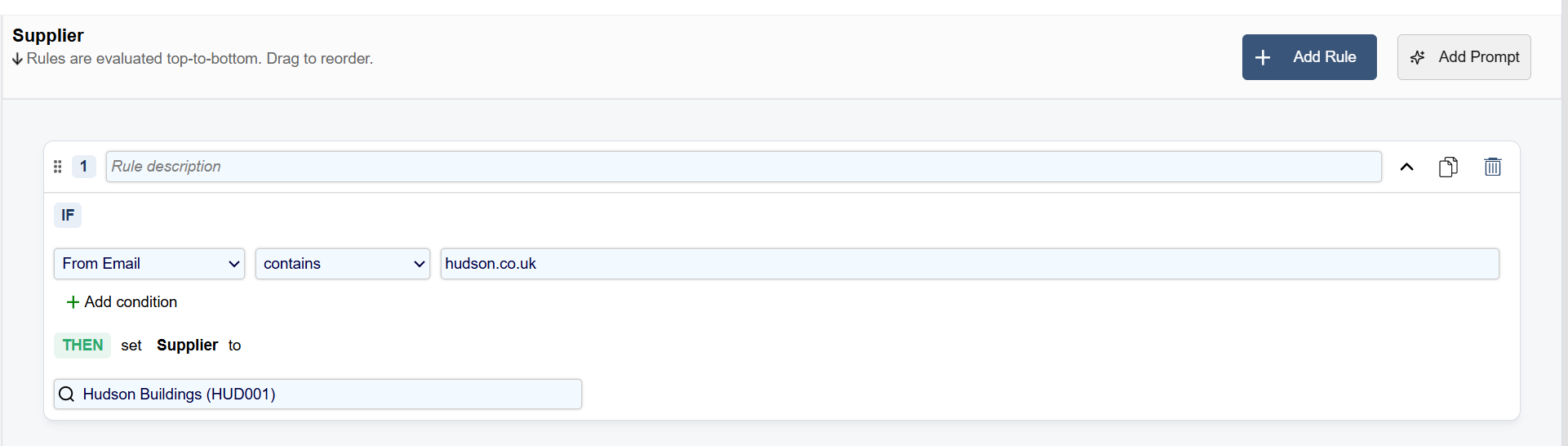
An example of a common rule:
-
Condition: From Email contains “hudson.co.uk”
-
Action: Set Supplier to “Hudson Buildings”
This ensures that invoices received from a known email are automatically assigned to the correct supplier.