
Draft Purchase Invoice Editor - Overview
E2D uses AI-powered automation to make entering invoice details into Aqilla faster and easier, reducing manual effort and saving you time.
Using the Draft Purchase Invoice Editor
-
Select an item from your Inbox.
-
The Draft Purchase Invoice Editor screen will open.
-
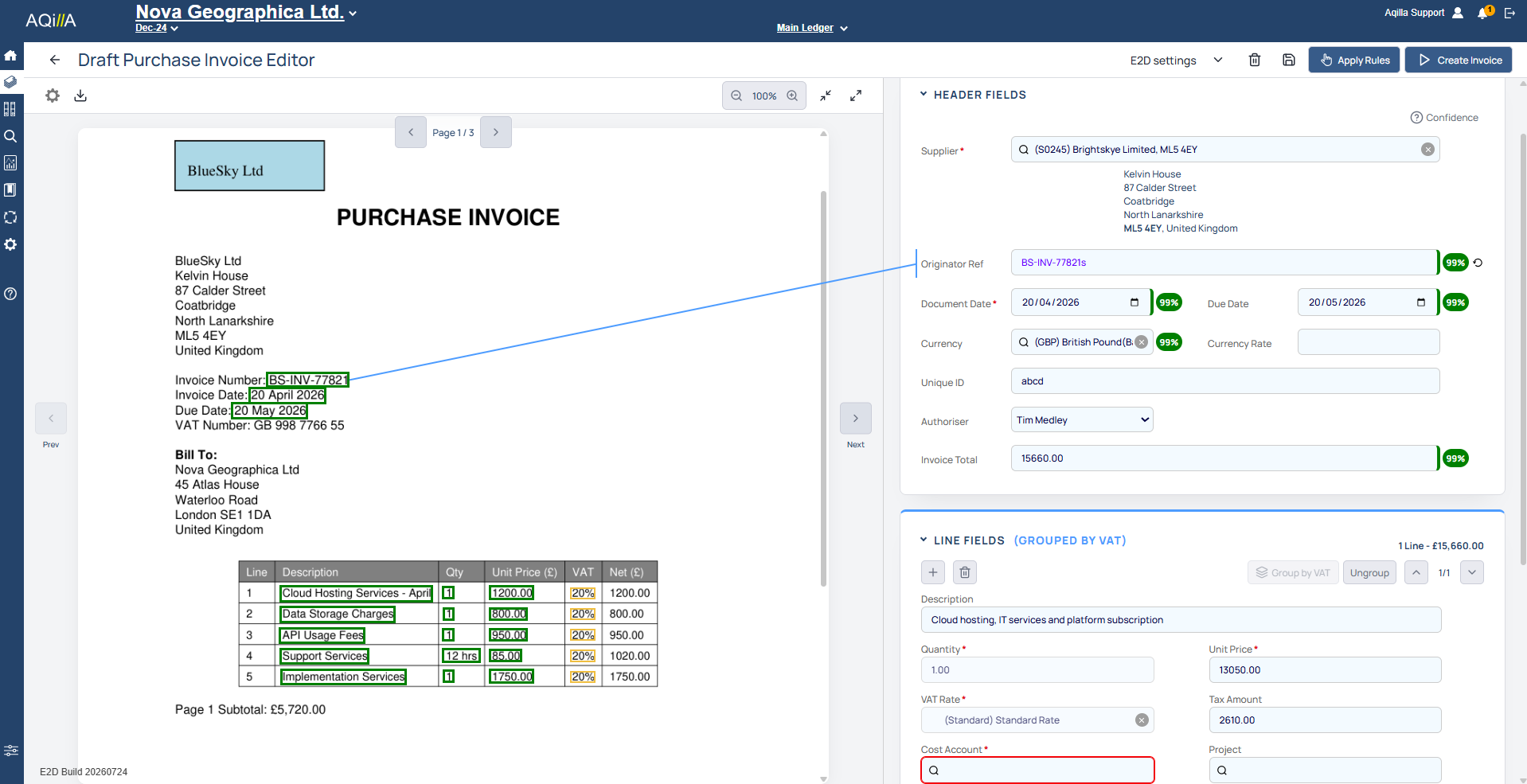
Aqilla automatically scans the document, mapping extracted data to the corresponding Header Fields and Line Fields on the right.
UI Functions
|
Function |
Description |
|---|---|


|
The “Previous” and “Next” buttons let you switch between invoices without returning to the inbox. |
|
|
This returns you to the Draft Purchase Invoice inbox. |
|
|
This opens a settings pane to configure how the system selects and highlights detected fields. You can adjust colours, lines, and outlines. |
|
|
This lets you download the Purchase Invoice from the editor as a PDF. |
|
Multi-page invoices can be paginated using the arrows above the image |

|
Zoom in or out of the document preview to inspect details closely |
|
This link opens the relevant settings tab to make changes, depending on permission |

|
Delete removes the draft invoice |
|
|
Use this after completing Header and Line fields to process the extracted data and create a Purchase Invoice. |
|
|
|
|
|
This saves changes made in the Draft Editor. A blue icon means no unsaved changes; red indicates unsaved updates requiring saving. |
|
|
The Add and Delete buttons let you add or remove lines in the purchase invoice within the Line Fields. |
|
|
Invoices will be filtered using the configured automation rules. |









Settings
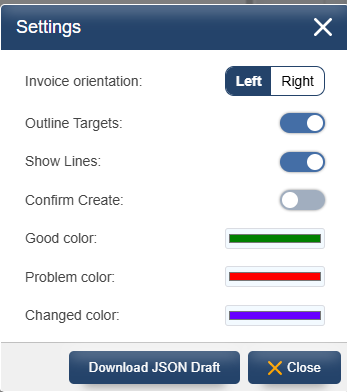
The settings pane allows various visual customisations to how to view the draft editor. Here you can amend the colours used to highlight the fields and the behavior of them.
Outline Targets
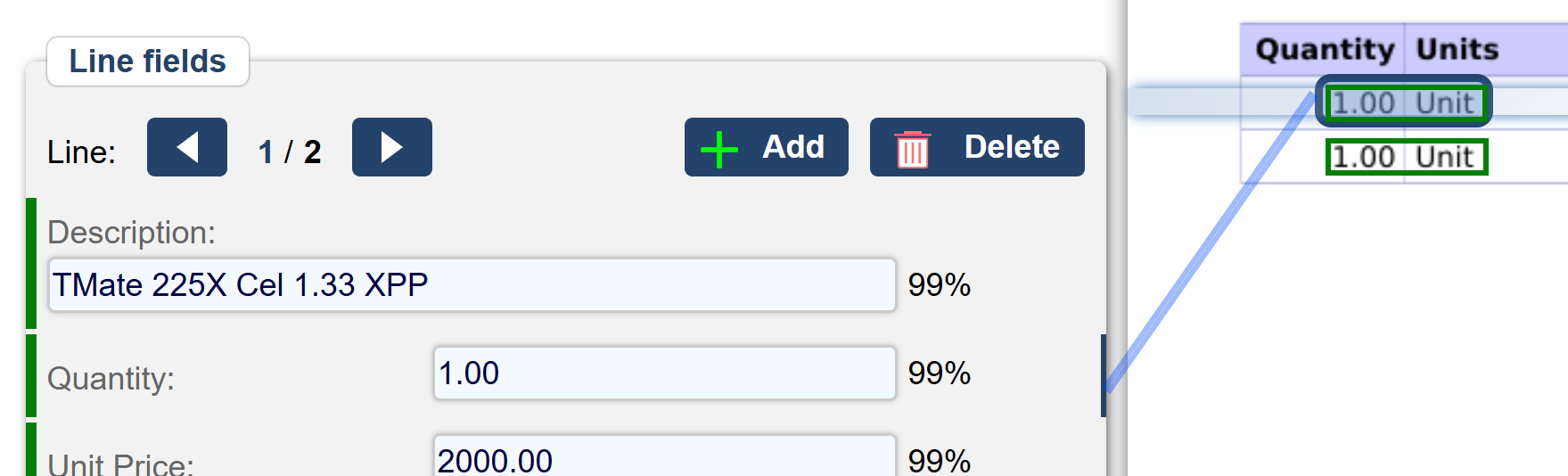
Fields highlighted in green or red on the invoice (as shown in the example) indicate data intelligently detected and extracted by the system. You can choose to outline these fields or disable this feature.

Show Lines
This self-explanatory option displays the lines connecting the data in the Line/Header field to the corresponding data on the invoice.
Colour Indicators
-
Good Color: Indicates data extracted with high confidence, deemed accurate. Default: Green.
-
Problem Color: Highlights data extracted with lower confidence, potentially prone to errors. Default: Red
-
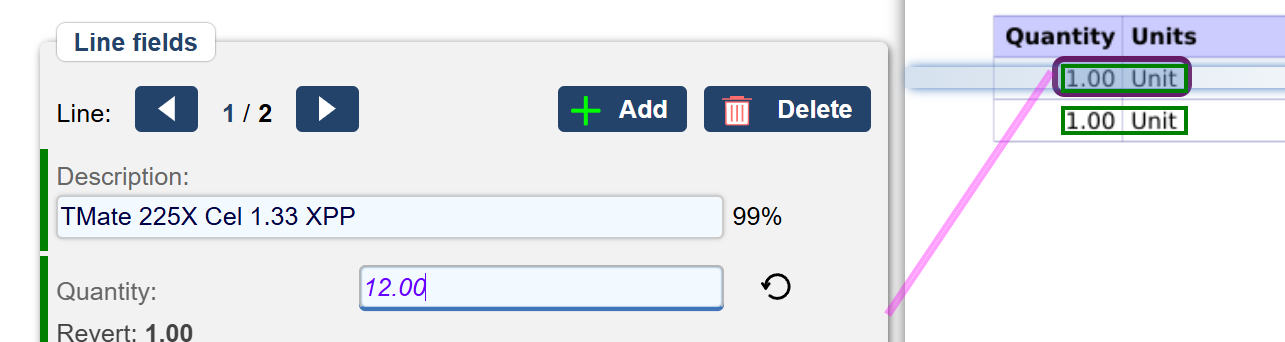
Changed Color: Appears when data in the Line/Header field is manually altered and differs from the invoice's sourced data. Default: Purple.
Header Fields
|
Field |
Description |
Automatic Detection? |
Mandatory? |
Notes |
|---|---|---|---|---|
|
Supplier |
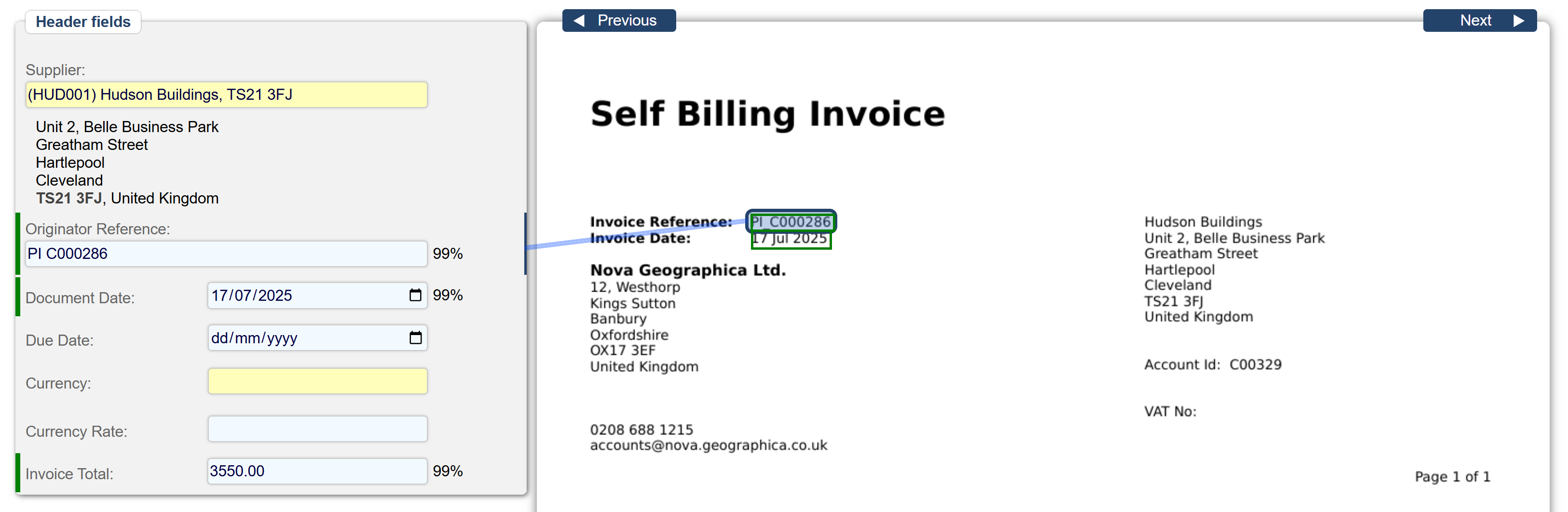
The system automatically assigns the Supplier Code by scanning the supplier's address on the invoice and cross-referencing it with the Supplier/Creditor Reference data stored in your instance. |
Yes |
Yes |
|
|
Originator Reference |
The originator reference will retrieve the reference used on the invoice, which differs from the transaction reference used in documents created in Aqilla. |
Yes |
No |
|
|
Document Date |
The document date will be extracted from the Invoice Date on the invoice. |
Yes |
Yes |
|
|
Due Date |
The system will retrieve the "Due Date" as indicated on the invoice. |
Yes |
No |
If there is no Due date on the invoice, then it will leave the field blank. |
|
Currency |
If the invoice is in a foreign currency and specifies the currency type, the system will recognize and process it accordingly. |
Yes |
No |
|
|
Currency Rate |
This field works in tandem with the Currency field and will be mandatory for retrieving the invoice rate whenever a currency type is detected. |
Yes |
No |
|
|
Invoice Total |
The invoice total will automatically reflect the gross total shown near the bottom of the invoice. |
Yes |
No |
|
Line Fields
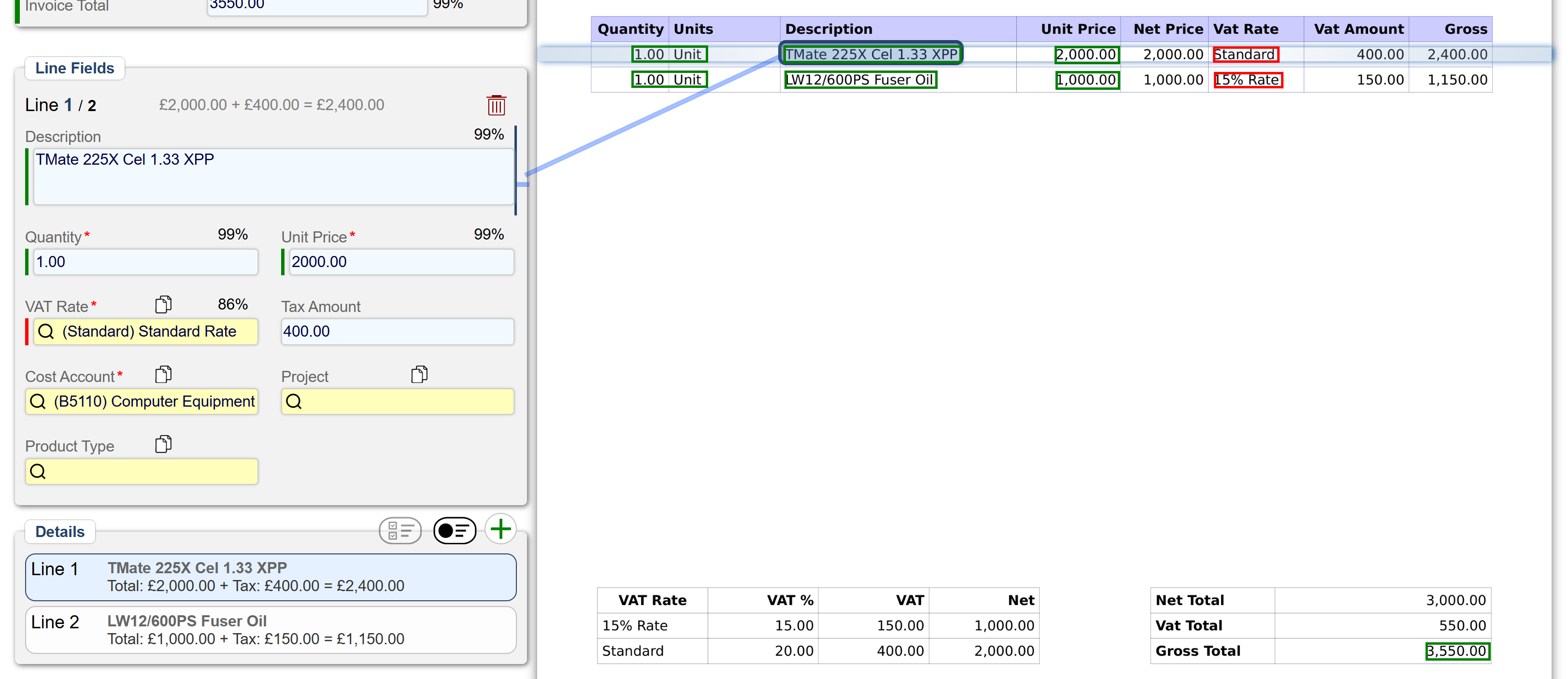
The Line Fields section includes fields for each line item on the invoice. If the invoice contains multiple line items, you can navigate through multiple pages to review the line fields and ensure all relevant fields are accurately captured and matched.
|
Field |
Description |
Auto Detection? |
Required? |
Notes |
|---|---|---|---|---|
|
Description |
This field extracts the description from the invoice, preserving the exact wording. |
Yes |
No |
By default, this does not reference any item description stored in your inventory system. |
|
Quantity |
Though optional, the system defaults the quantity to 1 for each line item. |
Yes |
No |
|
|
Unit Price |
This field extracts the unit price from the line, excluding net or gross prices. |
Yes |
Yes |
|
|
Discount Percent |
This optional field remains blank if no discount price is specified. |
Yes |
No |
|
|
Tax Amount |
The tax amount extracts the Tax/VAT figure from the invoice line, based on the net price. |
Yes |
No |
This field remains blank with zero if no VAT/tax figure is detected. |
|
Cost Account |
This mandatory field requires manual input. Since the cost account is sourced from Aqilla's reference data, the invoice does not include or detect this information. |
No |
Yes |
|
|
VAT Rate |
This field retrieves the VAT rate applied to each line item and is required. |
Yes |
Yes |
|